Google Business Profile Verification: Methods, Video Steps and Fixes
How Google Business Profile verification works: the methods Google assigns, what to film for video verification, review times, and how to fix a failed attempt.
Google Business Profile verification is how Google confirms that you run the business on a profile before it lets you manage it. Google's help page puts it this way: "To edit your business info on Google, such as business name or business hours, and interact with customers, you need to verify your business." Until then you can't fix your hours, reply to reviews or build the profile that decides whether you show up in the Map Pack, the local pack of three businesses above the map results. Google picks the verification method for each profile, and when a profile qualifies, Google recommends a short video filmed on a phone.
TL;DR
- Google assigns the options: video recording, live video call, phone or text, email, postcard, or instant verification. You can't change them, but you can use any one the profile shows.
- A verification video is one unedited take of at least 30 seconds, filmed in the Business Profile on a phone. It shows your location, your business, and proof you manage it.
- Reviews take up to 5 business days, rarely longer. Most postcards arrive within 14 days.
- Failures usually come from an address Google doesn't accept, details that don't match the real world, or a video missing one of its three parts.
- Verify the website in Search Console first: Google sometimes verifies such profiles instantly.
Why Google Business Profile verification matters
Verification gives you ownership of the profile. Google says that once you're verified, "you gain ownership of your Business Profile and can make sure your business info is accurate".
What it opens up:
- Editing the profile: name, hours, categories, services, service areas and photos.
- Talking to customers: replying to reviews, answering messages and posting updates.
- Performance data: how many people found the profile in Search and Maps, and what they did next.
Categories, hours, photos and reviews all shape how a profile shows in local results, and you manage them only after verification.
Google Business Profile verification methods
Google's help page states that "Verification methods are automatically determined by Google and can't be changed." The options depend on "your business type, public info, region, or business hours." If more than one shows up, you can try each of them.
| Method | How it works | How long it takes |
|---|---|---|
| Video recording | You film one continuous video in your Business Profile on a phone | Review takes up to 5 business days |
| Live video call | You show the business to Google on a live call | Only "within the business hours of your location" |
| Phone or text | Google sends a code to the business phone number | Enter the code when it arrives |
| Google emails the address on the verification screen | Follow the steps in the email | |
| Postcard | Google mails a code to the business address | "Most codes arrive within 14 days", and codes "expire after 30 days" |
| Instant | Google verifies the profile without a step from you | Immediate |
| Bulk | Chains submit 10 or more profiles in one spreadsheet | Google reviews the account and contacts you if it needs more |
Google recommends video when a profile qualifies: "If your business is eligible for video verification, we recommend that you use this option." Postcards aren't offered everywhere: "Verification through postcard isn't available for all businesses."
Instant verification. Google lists two cases where it can verify a profile on the spot: you've verified the business website in Google Search Console, or you use bulk verification. It isn't guaranteed, and the Search Console check only helps when the website on the profile is the one you verified.
The same Search Console property holds your website's search data. Connect Encited MCP to Claude or ChatGPT and you can ask which local searches already bring clicks to your site and which pages earn them. The Search Console reporting tools are on Encited's free plan.
Bulk verification. A business with 10 or more locations can verify them together. In Business Profile Manager, open the Verifications tab, choose Chain and select Start, then fill in the form and select Submit. Uploading a spreadsheet alone doesn't send a request, and Google may still ask for video verification. Google's conditions: the spreadsheet holds 10 or more profiles of the same business, and all the profiles you manage. Agencies whose account holds more than one business, and service-area businesses, can't use it.
How to start verification
- Sign in to the Google account that manages the profile and open it at business.google.com, or search for your business name on Google while signed in.
- Select Get verified.
- Pick from the methods Google shows: Phone or SMS, Email, Live video call, Postcard, or Business video.
- Complete the method. When Google accepts it, you get a confirmation email.
If the Get verified button comes back on the profile later, Google says "it means Google couldn't completely verify your business." Try again or switch to another method the profile offers.
Step-by-step guide to video verification
Google's video verification page sets these requirements:
- "At least 30 seconds long."
- "An unedited, unique, and complete recording with no breaks."
- "Recorded and uploaded from a mobile device through your Business Profile."
The video has to be filmed live in that flow. A clip recorded earlier and uploaded later isn't accepted. Before you start, Google may ask you to enter your phone number and to allow access to your location, camera and microphone.
Steps to record and upload
- Open your Business Profile on your phone and tap Get verified.
- Tap Business video, then Next.
- Read the requirements, then tap Next and Start recording.
- Film the whole walkthrough in one take, then stop recording.
- Watch it back. Tap Try again to re-record if anything is missing.
- Tap Upload video. Google notes that "videos fail to upload on the first try" in some cases: upload it again, ideally on a strong Wi-Fi connection.
What to film
Google asks for three things: where the business is, that the business exists, and that you manage it. Plan one route that covers them in order, starting outside.
| What Google wants | Storefront or hybrid business | Service-area business |
|---|---|---|
| Where it is | "street signs, building numbers, nearby businesses, or familiar places around your business" | "street signs, nearby landmarks, or other identifiers at your business address" |
| That it exists | "your storefront, showroom, or business signage" | "the professional tools, equipment, or products you use for work" |
| That you manage it | "things only an employee can access, like opening a cash register" | "yourself performing a service or accessing business-only assets" |
Both types can also show "business documents like a business permit, invoice, or utility bill" that match the name on the profile. Leave out what Google lists as off limits: "Sensitive info like bank account, tax, or ID numbers", "Private info about you or others" and "Other people's faces."
A one-take shot list
Walk the route once without recording, and in a shared building ask the property manager before you film the lobby. Then film it:
- Start at the nearest street sign or building number and hold on it for a few seconds.
- Pan to a neighboring business or landmark.
- Walk to your entrance and film the signage with your business name, the same name as on the profile.
- Unlock the door, or go inside to a staff-only area.
- Show the work: the shop floor, the treatment room, the kitchen, the tools.
- Finish on proof of management: open the register, sign in to the point-of-sale system, or open a branded vehicle.
Film in daylight and keep the camera moving slowly. If one of the three parts is unclear, the profile comes back with a Review issues notice and you film again.
Verifying a home-based, co-working or shared-building business
Home-based service-area business. Hide your address in the profile: Google's guidelines say "If you're a service-area business, you should hide your business address from customers." In the video, film the street signs or landmarks at the address, then the vehicle, tools and equipment you work with, then yourself starting a job or opening business-only gear. A home doesn't need a storefront in the shot.
Co-working space. Google allows it only with conditions. A business "can't list an office at a co-working space unless that office maintains clear signage", and the office must receive customers and be "staffed during business hours by your business staff." Film the building's street address, the signage on your office, and your team at work inside.
Office in a shared building or high-rise. Start at the street with the building number in shot, film the lobby directory or tenant board if it lists you, then go up to your door and its signage before you film inside.
Addresses Google rejects. "P.O. boxes or mailboxes located at remote locations aren't acceptable", and a rented mailing address where the business doesn't operate "isn't eligible for a Business Profile." An online-only business with no in-person contact is out too: Google says it's "not eligible for a Business Profile and can't be verified." No video gets those verified.
How long Google Business Profile verification takes
Google says "verification reviews take up to 5 business days. On rare occasions, reviews may take longer." A phone or text code is entered the moment it arrives, an email takes a few steps, and an instant verification is done when you see it. Postcards are the slow option: most arrive within 14 days, and the code expires after 30 days.
While a postcard is on its way, Google has two rules: "Do not request a new code", because a new request invalidates the one in the mail, and "Do not edit your business name, address, or category", or the code won't work. Request a new one only after 30 days.
To check where you stand, open the profile. A confirmation email means it's verified. A Get verified button or a Review issues notice means it needs another attempt.
Common reasons verification fails and how to fix them
| What you see | What it means | Fix |
|---|---|---|
| Review issues notice | Google says "your video wasn't accepted" | Tap Review issues, then record a new video with everything from the first one plus the missing parts |
| Get verified appears again | Google couldn't completely verify the business | Try again, or use another method the profile shows |
| "Give additional info to re-verify" | Some business details were recently updated | Select Get verified and complete the method shown |
| The address can't be verified | P.O. box, virtual office, or a co-working desk without signage | Use the address where you serve customers or work. A business that travels to customers from a real base, such as a home, can list as a service-area business with the address hidden |
| Video keeps failing | One of the three parts is missing or unclear | Film the street, the signage or tools, and staff-only access in one continuous take |
| Video won't upload | The upload failed on the first try | Upload it again on a stronger connection |
Two more causes are easy to miss:
- The name doesn't match the real world. Google's rule is "Your name should reflect your business's real-world name", and "Including unnecessary information in your business name isn't permitted." Keywords or a city added to the name don't match the signage in your video.
- The details don't match the website. Use the same name, address and phone number (NAP) on the profile, your website and the directories that list you. Google asks you to represent the business "as it's consistently represented and recognized in the real world".
Edits to core details can send a profile back to verification, so make the name, address and category changes you need in one go.
How to contact Google Business Profile support
Google asks you to try the methods first: "We recommend that you try the options available to you." Escalate in this order:
- Re-record the video with everything the Review issues notice lists.
- Try every other method the profile shows.
- Contact support. Google's help page says "If you're still unable to verify your business, contact support", and links the contact form from the verification article.
- Post in the Business Profile community forum, where product experts answer verification questions.
Before you contact them, collect:
- The profile link and the Google account that manages it.
- Each method you tried, with dates.
- Screenshots of the Review issues notice or any error.
- Proof of the business: a license, a utility bill or a permit in the business name.
What to do after verification
Once the confirmation email arrives, finish the profile before you chase rankings:
- Primary category. Pick the one that describes your main service.
- Hours and service areas. Add regular hours, holiday hours and every area you serve.
- Services and products. List each one with a short description.
- Photos. Add the storefront, the team and real jobs.
- Reviews. Reply to every review, and ask happy customers to mention the service they bought.
- Your website. Link the page that matches the profile, with the same name, address and phone number.
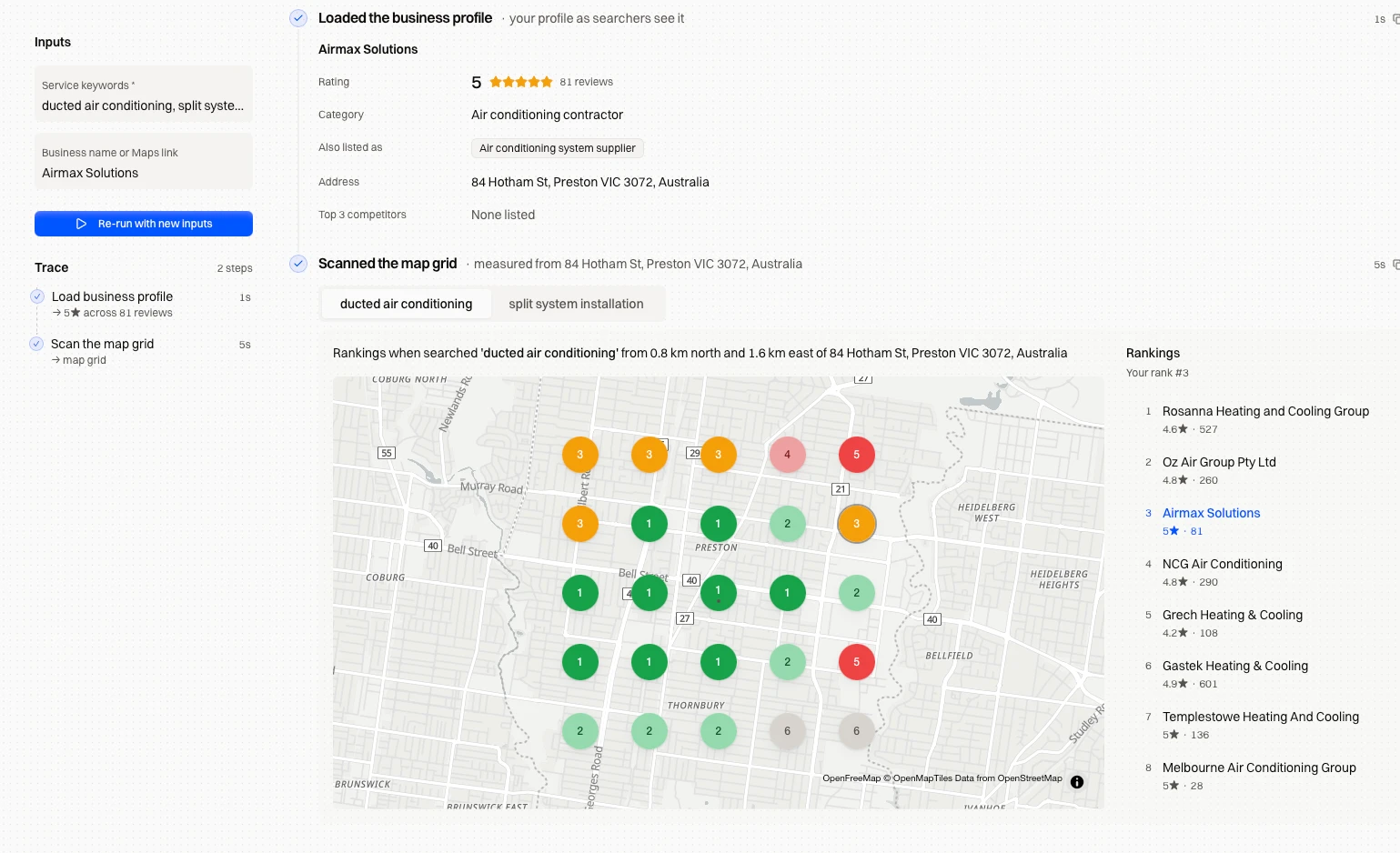
Then find out where you rank. A profile can sit first in the Map Pack a block from the office and fall off a mile away. With Encited MCP, your agent can scan a 5×5 Google Maps grid around your pin for the services you choose, and list the businesses that outrank you at each point with their rating and review count.
Your website feeds the profile too. The free SEO audit checks the page your profile links to for the title, description and technical problems that keep it from ranking.
FAQ
How do I verify my Google Business Profile? Sign in to the Google account that manages the profile, open the profile and select Get verified. Google shows the methods it allows for that profile: video recording, live video call, phone or text, email or postcard. Complete one, and Google sends a confirmation email once the business is verified.
How long does Google Business Profile verification take? Google says verification reviews take up to 5 business days, and on rare occasions longer. A phone or text code and the steps in a verification email take minutes. Most postcards arrive within 14 days, and postcard codes expire after 30 days.
Can I choose my verification method? No. Google says verification methods are automatically determined and can't be changed. They depend on your business type, public info, region and business hours. If the profile shows more than one option, you can try the others.
What do I need to show in a verification video? One unedited recording of at least 30 seconds, made in the Business Profile on a phone. Show where the business is (street signs, building numbers or nearby businesses), your signage or the tools you work with, and something only staff can access, such as opening the cash register.
Why is my Google Business Profile verification not working? The usual causes are an address Google doesn't accept, such as a P.O. box or a virtual office, details that don't match your signage and website, a video missing one of the required parts, or recent edits that sent the profile back for review. A Review issues notice lists what the video missed.
What documents does Google accept for verification? In a verification video you can show business documents like a business permit, invoice or utility bill that match the name on your Business Profile. Keep bank account, tax and ID numbers out of the shot.
How do I verify a service-area business that works from home? Hide the address in the profile. In the video, show street signs or landmarks at the business address, the tools or equipment you work with, and yourself performing a service or reaching business-only assets such as a branded vehicle.
Why is Google asking me to verify my business again? Google says this is likely because some business details were recently updated. Select Get verified and complete the method shown. If the Get verified button reappears after an attempt, Google couldn't completely verify the business.
How do I contact Google about Business Profile verification? Try every method the profile shows first, then use the contact support link in Google's verification help article. Have the profile link, the methods you tried and screenshots of any error ready.