
Overview
The DNS option is the recommended way to activate Encited. You add two A records at your domain registrar, Encited detects them, and pre-rendering is on for every bot that hits your site. There's no code to ship, no middleware to maintain, and no per-request integration to keep healthy.
Changing DNS records does not remove your domain from your project. Your domain will continue to point to your project and your users will see your custom domain in their address bar. Nothing in your workflow changes — your site gets better crawlability, gets indexed faster, and becomes citable by AI engines.
Step-by-step
Set your project URL
On the activate-domain page, the first step is "Set project URL". Paste the preview URL from your hosting provider — without https://. Examples:
my-awesome-app.lovable.appmy-site-abc123.vercel.appmy-site.netlify.appmy-app.base44.appmy-repl.replit.appmy-site.vibepreview.co
This is where Encited sends real human visitors. Bots get the pre-rendered snapshot instead.
Add the A records at your registrar
Easiest path — Auto-configure DNS. Click the Auto-configure DNS button in the dashboard. Encited connects to your registrar through Entri, prompts you to log in, and writes both records for you. Only the records below are added — nothing else is touched. Most major registrars (GoDaddy, Namecheap, Squarespace, Google Domains, IONOS, and others) are supported.
If your registrar isn't supported by Auto-configure, add these records manually:
| Type | Name | Value |
|---|---|---|
| A | @ |
168.220.87.211 |
| A | www |
168.220.87.211 |
In your registrar's DNS settings, add both records exactly as shown — @ for the apex and www for the subdomain. Use the copy buttons next to each value in the dashboard so you don't mistype the IP.
Already pointing at 5.161.30.49? Our older IP is still fully supported — nothing breaks and you don't need to migrate. New setups should use 168.220.87.211, but existing records keep working as-is.
Already have conflicting records? If @ or www already has an A record or a CNAME pointing somewhere else, delete the old one first — DNS doesn't allow conflicting records on the same hostname. See DNS record conflict. (Auto-configure DNS handles this for you automatically when supported.)
Wait for verification
Encited polls DNS every few seconds. Once both records resolve to our IP, the row's status flips from "To be added" to a green "Verified". This is usually under 10 minutes but depends on the previous TTL on your domain.
If you don't want to wait in the tab, that's fine — you'll get an email once the domain is connected. You can also click Test Connection at the bottom to force a re-check.
Cloudflare only — disable proxy temporarily
If your nameservers are at Cloudflare, the A records you just added show up with an orange cloud (Cloudflare proxy). Click the orange cloud to switch it to a gray cloud (DNS only) for both records.
You can re-enable Cloudflare's proxy later — but it must be off during initial verification, otherwise Encited sees Cloudflare's IPs instead of yours and verification never completes.
Lovable only — unset custom domain as primary
If your origin is *.lovable.app, open your project in Lovable.dev → Settings → Domains. Find your custom domain. If it has a ⭐ star next to it, click the three dots (⋮) and pick Unset as primary.
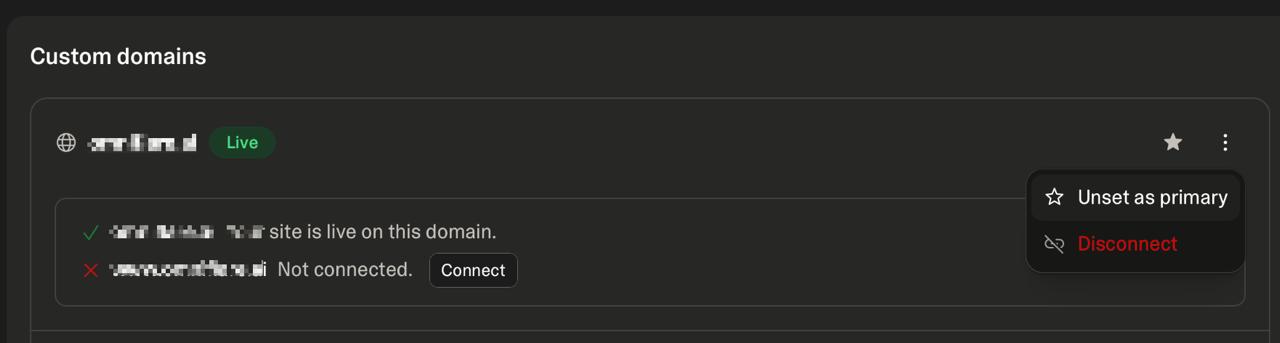
This prevents a redirect loop where Lovable.dev redirects your custom domain back to itself while Encited is also serving it. Your domain keeps working — Lovable just stops claiming it as the canonical one.
How to confirm it's working
Once the dashboard shows your domain as connected, two things start happening:
-
Bots see pre-rendered HTML. Test it yourself with a Googlebot user-agent:
bashCopyDownloadcurl -A "Googlebot" -sS -D - -o /dev/null https://your-domain.com/You should get
HTTP/1.1 200andcontent-type: text/htmlwith full meta tags and rendered content. -
Crawl Analytics starts populating. Within a few hours of bots hitting your domain, the Crawl Analytics tab on your site will start showing requests:
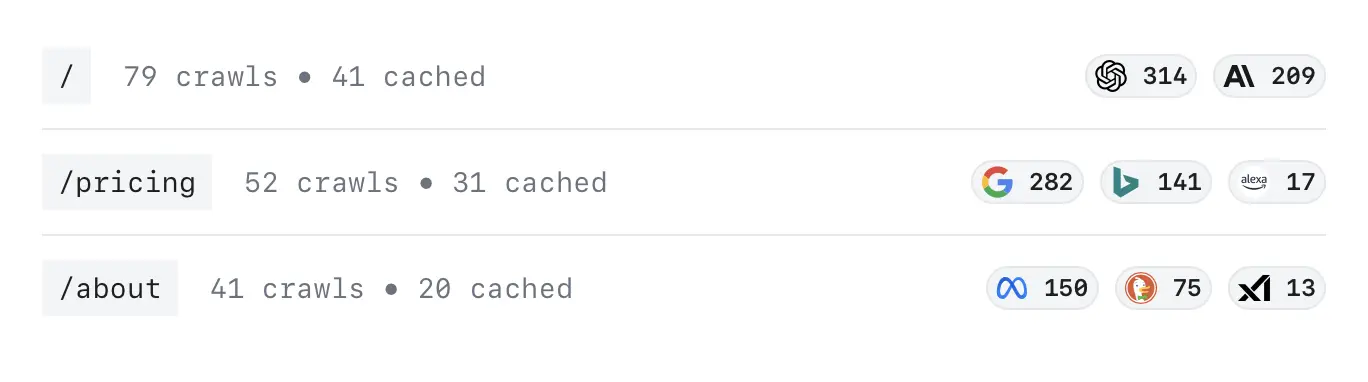
No data shown yet? That's normal for the first day or two — bots have to find you first. See the Crawl Analytics guide for what each metric means.
Common troubleshooting problems
"Site can't be reached" / 503 / SSL error in your browser only
Your DNS is propagated for the rest of the world but your local machine still has the old DNS values cached. Try incognito mode or a different device — if the site loads there, it's your cache. Wait it out (usually 20–60 minutes) or flush your DNS cache.
"ERR_TOO_MANY_REDIRECTS"
You skipped Step 5. Your custom domain is still set as primary in Lovable.dev (or another origin), so traffic bounces between Encited and the origin forever. Unset it as primary and the loop breaks. Full fix in Too many redirects.
"DNS records detected but verification failing" (Cloudflare)
You forgot Step 4 — the orange cloud is on. Encited sees Cloudflare's proxy IPs (something like 104.21.x.x) instead of 168.220.87.211. Click the cloud to gray on both records. Verification completes within a minute.
"Cannot add the A record" / registrar rejects it
You have a conflicting record on the same hostname — usually a leftover A record pointing somewhere else, or a CNAME on @ or www. Delete the old record first, then add the new one. Step-by-step in DNS record conflict.
"Records added but still showing 'Not detected yet' after 30+ minutes"
Two likely causes:
- TTL — your previous DNS records had a high TTL (e.g. 24 hours), so resolvers worldwide still cache the old answer. Use whatsmydns.com to see propagation across regions.
- Wrong record name — some registrars want the bare domain (
example.com) instead of@, orwww.example.cominstead ofwww. Both work, but check what your registrar actually saved.
"Project URL is required" error when clicking Test Connection
Step 1 wasn't saved. Go back to "Set project URL", paste the deployment URL (without https://), and click Save. Then re-run Test Connection.
Site loads in browser but no crawler data appears in dashboard
This is expected for the first 24–72 hours. Crawl Analytics shows actual bot visits — you have to wait for bots to find you. To speed things up:
- Submit your domain in Google Search Console.
- Make sure you have a valid sitemap and that it's reachable at
/sitemap.xml. - Set the sitemap URL in your site Settings so Encited can pre-warm pages.
Stuck after 30 minutes? Click Get help on the activate page to ping our AI setup wizard with your DNS state attached, or book a free 15-min setup call. Most stuck setups are resolved in under 5 minutes.
Why DNS over middleware?
Both options pre-render the same way. The difference is operational:
| DNS (this guide) | Middleware | |
|---|---|---|
| Setup time | ~5 min | ~30 min |
| Code changes | None | Edge function or worker |
| Ongoing maintenance | None | You own the integration |
| Best for | Most users | Existing edge-function setups, custom routing |
If you're not already running middleware, use DNS.