
Track your brand in AI answers
Find out whether ChatGPT, Claude, Perplexity, Gemini, and Google AI Overview name your brand when buyers ask about your category.
Time: 10 minutes. You need: a brand book for the site.
1. Open Prompts#
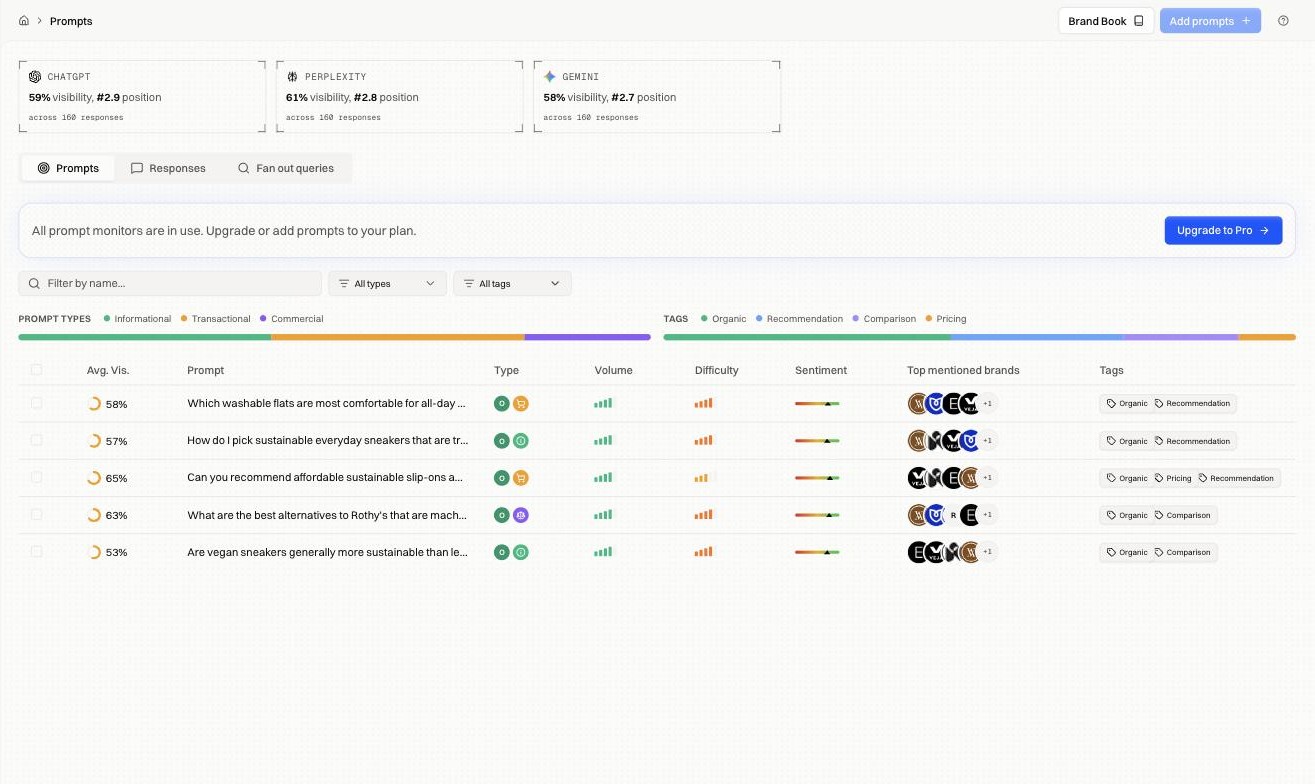
Go to Monitor → Prompts. The cards across the top show visibility and average position per engine, with the number of responses each figure is based on.
2. Add prompts#
Click Add prompts. The dialog has your prompts on the left and an Ideas panel on the right.
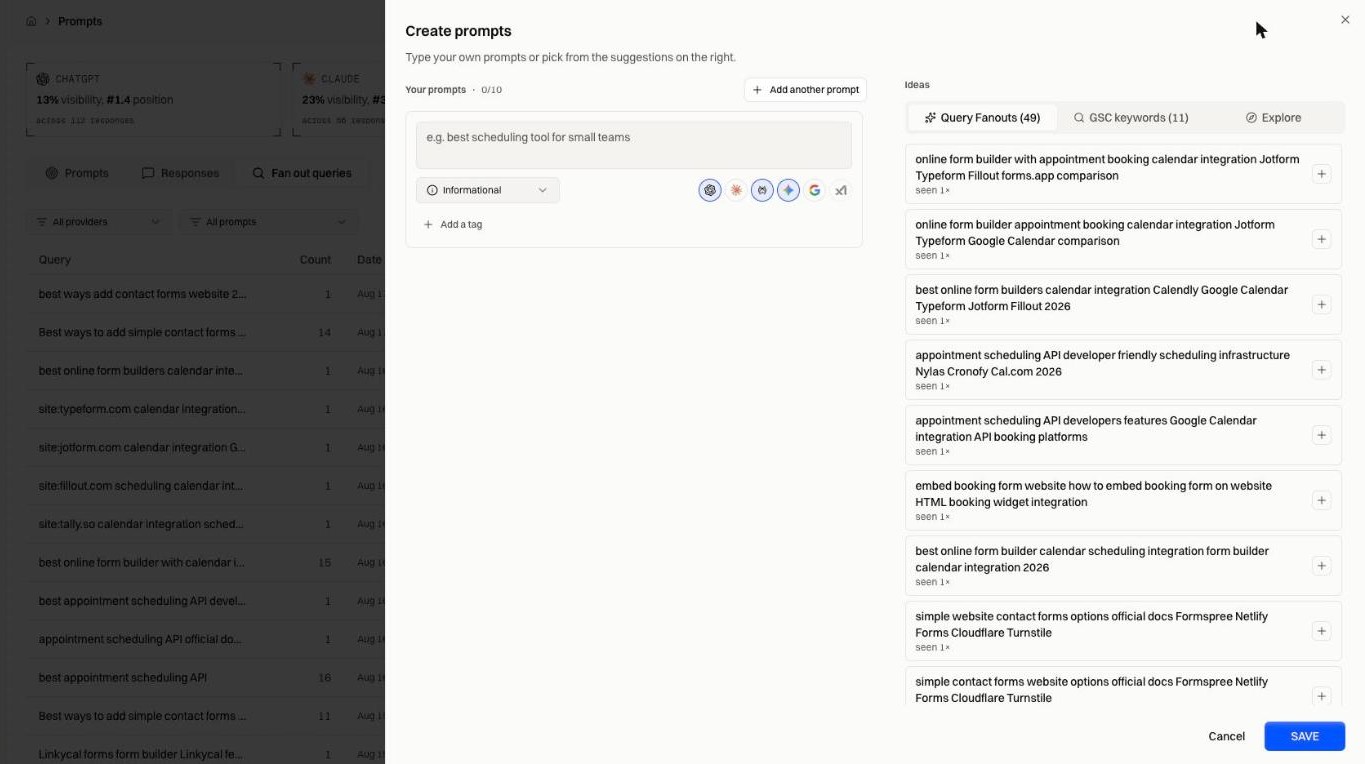
Start from the Ideas panel. It offers three sources:
| Source | What it gives you |
|---|---|
| Query Fanouts | Searches engines already ran while answering your existing prompts. These are known-real queries. |
| GSC keywords | Queries your site already gets impressions for in Search Console. |
| Explore | Suggestions generated from your brand book. |
Click the + on any idea to add it. To write your own, type it as a buyer would ask it: "best scheduling tool for small teams", rather than your brand name.
For each prompt, set:
| Field | Notes |
|---|---|
| Intent | Informational, Transactional, or Commercial. Drives the type filter and reporting later. |
| Engines | Which assistants to ask. Availability depends on your plan. |
| Tags | Optional labels for filtering, e.g. Comparison, Pricing, Branded. |
Available on all plans Your plan sets how many prompts you can track and which engines you can pick. When every monitor is in use, the Add prompts button is disabled until you free one or upgrade.
You can add up to ten prompts at a time. Click Save.
3. Wait for the first run#
Runs start on save and take a few minutes, since every prompt goes to every engine you picked.
4. Read the table#
Back on Monitor → Prompts, one row per prompt:
| Column | Reading it |
|---|---|
| Avg. Vis. | Share of answers that named you. Read this first; at 0%, the rest of the row is moot. |
| Type | Informational, Transactional, or Commercial. |
| Volume | How much real search demand sits behind the prompt. |
| Difficulty | How hard the prompt is to win. |
| Sentiment | How you're described when named. |
| Top mentioned brands | Who else appears in those answers. |
| Tags | Your own labels. |
Start with high-volume, low-visibility prompts. Protect the high-difficulty prompts you already win.
5. Open a prompt#
Click any row. The cards show mentions, visibility, and average sentiment for that prompt, and the table below lists every run.
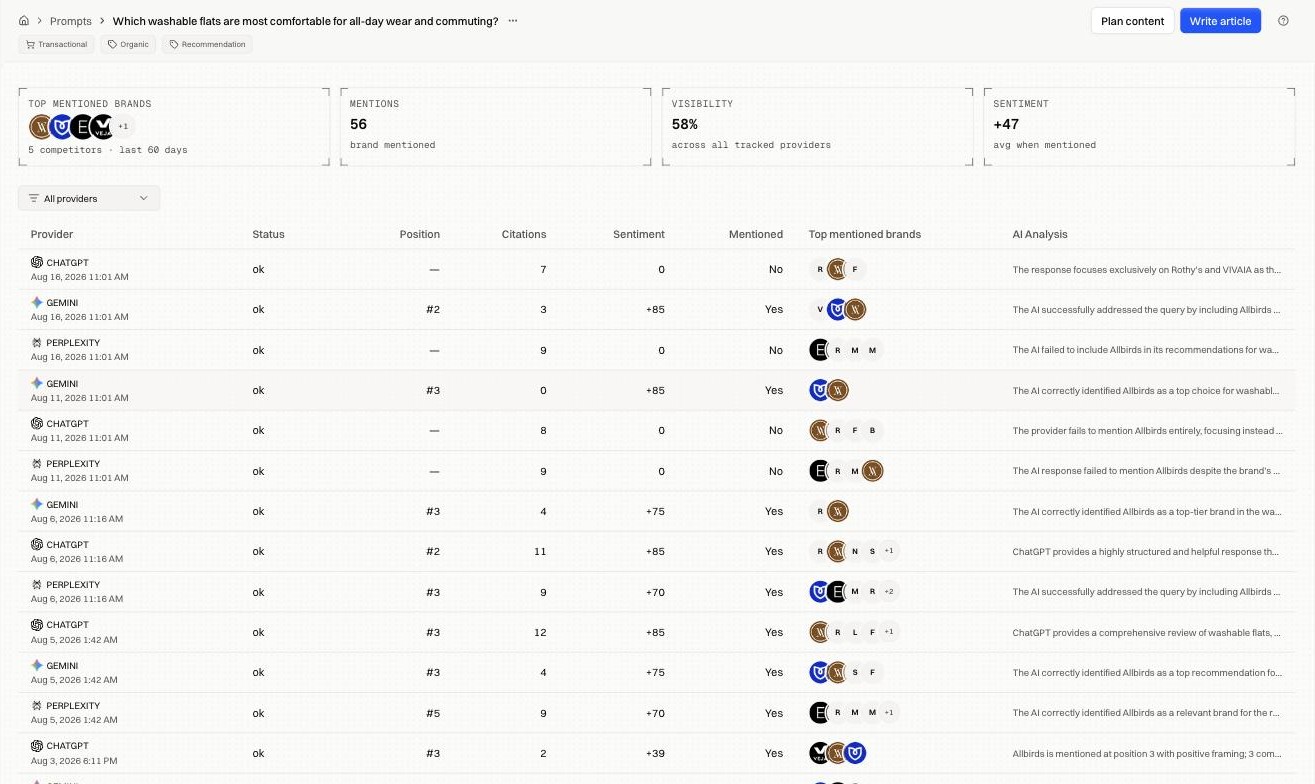
Each run shows the engine, position, citations, sentiment, whether you were mentioned, and a one-line AI Analysis of the answer. Study the runs where Mentioned is No and Position is blank: same prompt, same day, one engine named you and another didn't.
6. Read the answer#
Click a run to open the response.
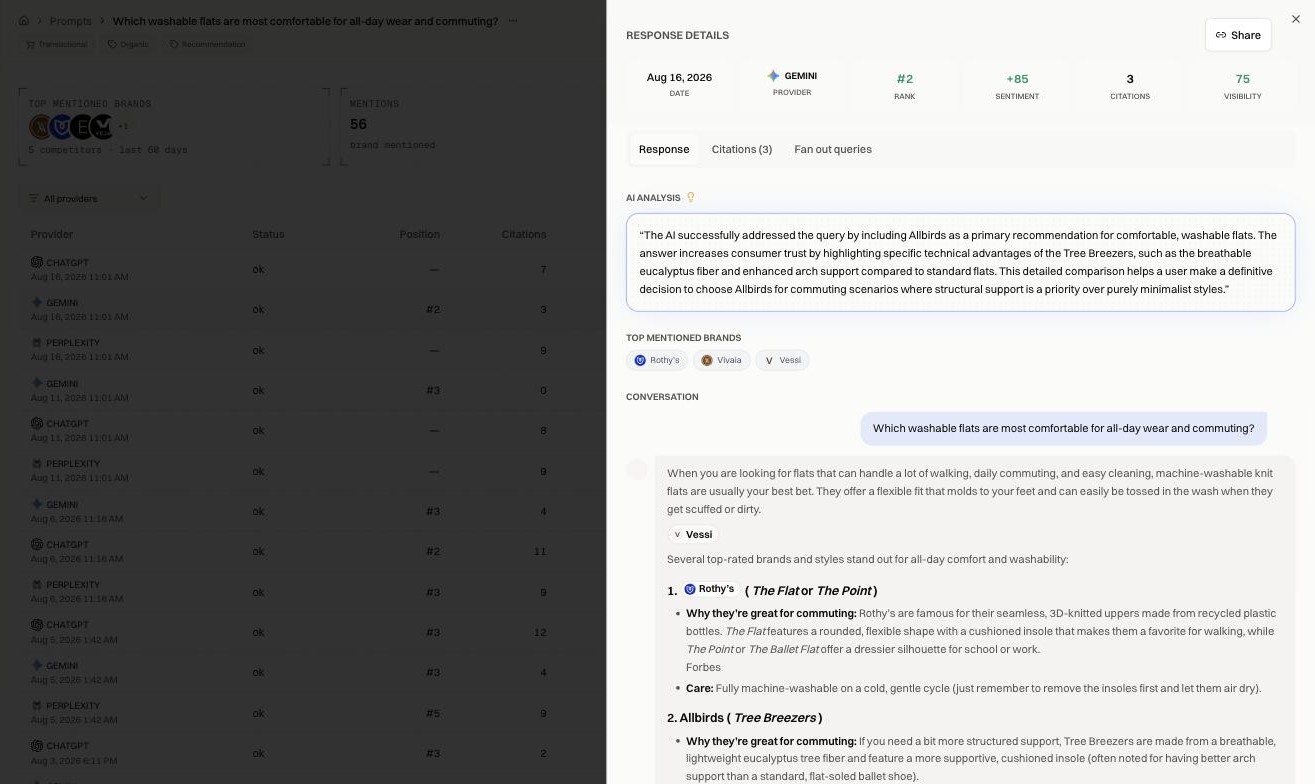
The drawer carries the analysis, the brands named, and the full answer text. It also has Citations and Fan out queries tabs for that single response. Read two or three answers in full to see what the winning brand said in its place.
Fixes by symptom#
| Symptom | Go to |
|---|---|
| Not mentioned at all | Monitor → Citations, get onto pages already being read |
| Named late in the list | Plan content or Write article on the prompt page |
| Poor sentiment | Read the answer text and trace the claim to its source |
| One engine names you, another never does | Compare the citations on both runs; they're reading different pages |
| Nothing changes over weeks | Inspect & Optimize → Pre-rendering, confirm crawlers can read your site |
FAQ#
How many prompts should I track? Enough to cover the questions that lead to a sale. Near-identical prompts consume monitors without adding information.
Why did visibility drop with no change on my site? The answers themselves changed. Open the prompt and compare a recent run with an older one.
Can I track a competitor's brand? Not directly. Track the prompts you both compete on; Top mentioned brands shows who appears.