
Set up pre-rendering with DNS
Add two A records at your registrar and pre-rendering is on for every bot that hits your site. There's no code to ship and no integration to keep healthy.
Changing these records doesn't remove your domain from your project. Your domain keeps pointing at your project and visitors keep seeing your custom domain in the address bar. Your workflow stays the same.
Time: about 5 minutes, plus DNS propagation.
1. Set your project URL#
Go to Inspect & Optimize → Pre-rendering. On the Automatic Pre-rendering tab, the first step is "Set project URL". Paste the preview URL from your hosting provider, without https://:
my-awesome-app.lovable.appmy-site-abc123.vercel.appmy-site.netlify.appmy-app.base44.appmy-repl.replit.appmy-site.vibepreview.com
That's where your human visitors get sent. Bots get the pre-rendered snapshot instead.
2. Add the A records#
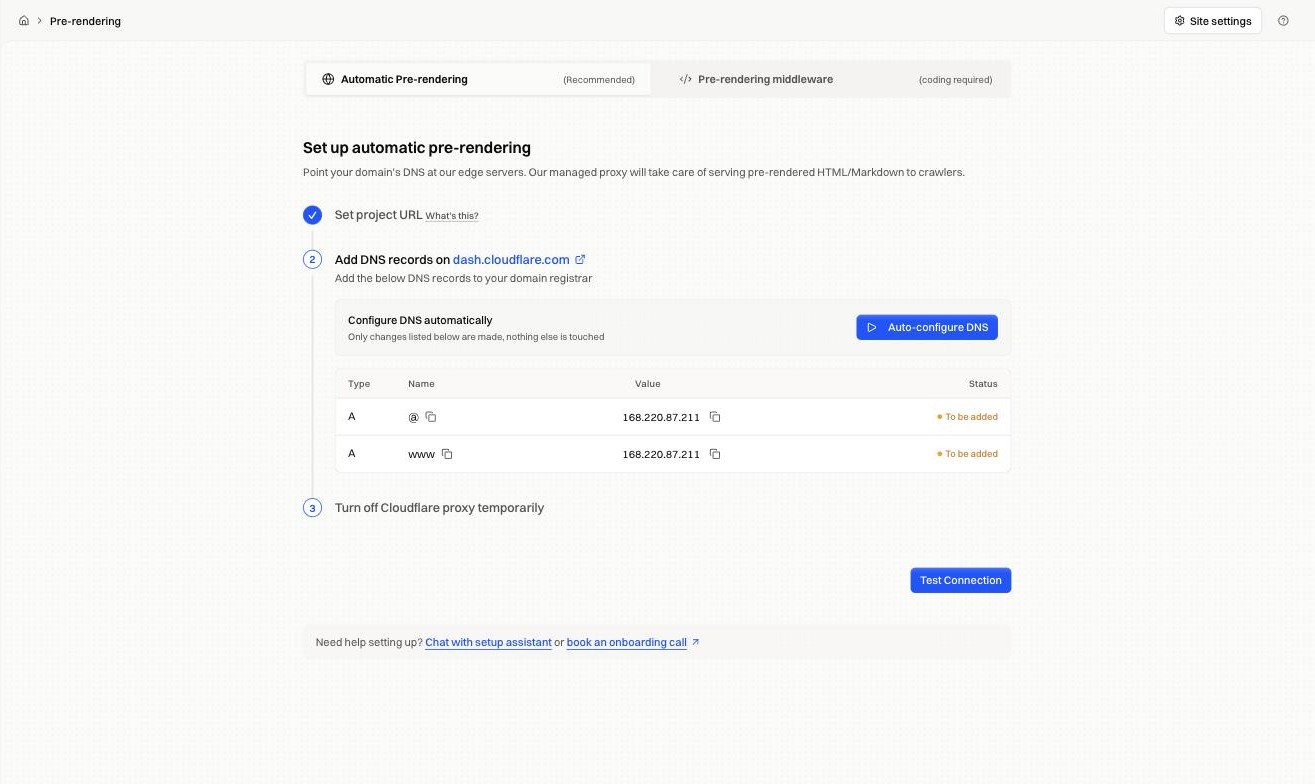
Auto-configure DNS is the quickest route. It connects to your registrar through Entri, prompts you to log in, and writes both records. Only the records listed are added, nothing else is touched. GoDaddy, Namecheap, Squarespace, Google Domains, IONOS and most other major registrars are supported.
If your registrar isn't supported, add these manually:
| Type | Name | Value |
|---|---|---|
| A | @ |
168.220.87.211 |
| A | www |
168.220.87.211 |
Use @ for the apex and www for the subdomain. The copy buttons next to each value avoid mistyping the IP.
Already pointing at 5.161.30.49? That older IP is still fully supported. Nothing breaks and there's no migration to do. New setups should use 168.220.87.211.
If @ or www already has an A record or a CNAME pointing somewhere else, delete the old one first. DNS doesn't allow conflicting records on the same hostname. See DNS record conflict. Auto-configure handles this for you where it's supported.
3. Turn off the Cloudflare proxy temporarily#
If your nameservers are at Cloudflare, the records you just added show an orange cloud. Click it to switch both to a gray cloud (DNS only).
You can turn the proxy back on later. While it's on during setup, Encited sees Cloudflare's IPs instead of yours and verification never completes.
4. Wait for verification#
Encited polls DNS every few seconds. Once both records resolve, each row flips from "To be added" to a green "Verified". That's usually under 10 minutes, depending on your previous TTL.
You'll get an email once the domain is connected, so you don't have to watch the tab. Test Connection forces a re-check.
5. AI website builders: unset your custom domain as primary#
Lovable, Base44 and GHL AI Studio each let you mark a custom domain as the project's primary address. Open your builder, find your custom domain, and remove that mark. In Lovable it's a star: click the three dots next to the domain and pick Unset as primary.
| Builder | Origin | Where to unset it |
|---|---|---|
| Lovable | *.lovable.app |
Settings → Domains |
| Base44 | *.base44.app |
Settings → Domains |
| GHL AI Studio | *.vibepreview.com |
Publish → Website address |
On every other host you can skip this step.
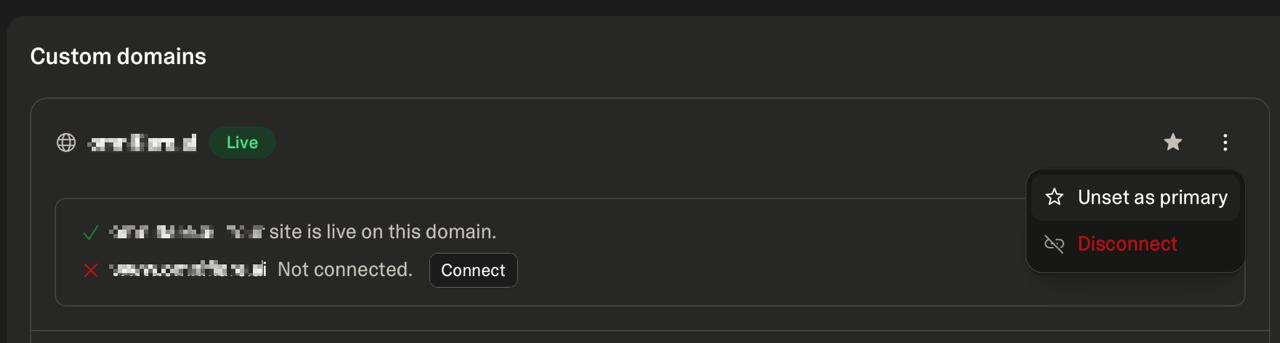
While the domain is marked primary, the builder answers every request for it with a redirect back to itself, and Encited is serving that same domain, so the two bounce the request between them and the page never loads. Unsetting it changes nothing about how your site is served; the builder just stops claiming the domain as canonical.
6. Add your sitemap and run the first render#
Go to Inspect & Optimize → Pre-rendering and paste your sitemap URL, usually https://your-domain.com/sitemap.xml. Encited fetches it, discovers your pages, and lists them in the Pages table. Without a sitemap it has no list of pages to keep fresh.
Then click Re-render All. That queues every page in the sitemap and fills the cache, so the first crawler to arrive gets a stored snapshot instead of waiting on a render.
Rendering runs in the background and a large sitemap takes a while. Pages flip to a rendered state in the table as the queue works through them. Wait for that to finish before you verify.
Confirm it's working#
Once the dashboard shows your domain as connected, check what a bot gets:
curl -A "Googlebot" -sS -D - -o /dev/null https://your-domain.com/
You want HTTP/1.1 200 and content-type: text/html, with full meta tags and rendered content.
Then open a page's snapshot to read the whole thing. Snapshot details walks through it.
Crawl activity takes longer to appear. Bots have to find you first, which is normal for the first day or two.
If your site sits behind a firewall, bot protection, or rate limiting, those rules block our renders and audit crawls. Set a render token and add one firewall rule before you go looking for other causes.
Fixes by symptom#
"Site can't be reached", 503, or an SSL error, but only for you#
Your DNS has propagated for everyone else and your machine still holds the old values. Try incognito or another device. If it loads there, it's your cache. Wait it out, usually 20 to 60 minutes, or flush your DNS cache.
ERR_TOO_MANY_REDIRECTS#
Step 5 was skipped. Your custom domain is still primary at your origin, so traffic bounces back and forth. Unset it and the loop breaks. Full fix in Too many redirects.
Records added but verification keeps failing, on Cloudflare#
The orange cloud is still on. Encited sees Cloudflare's proxy IPs, something like 104.21.x.x, instead of 168.220.87.211. Switch both records to gray and verification completes within a minute.
The registrar rejects the A record#
There's a conflicting record on the same hostname, usually a leftover A record or a CNAME on @ or www. Delete it first. Step by step in DNS record conflict.
Still "not detected" after 30 minutes#
Two common causes. Your previous records had a high TTL, so resolvers still hold the old answer; whatsmydns.com shows propagation by region. Or the record name is wrong: some registrars want the bare domain instead of @, or www.example.com instead of www.
"Project URL is required" when testing the connection#
Step 1 didn't save. Set the project URL, save it, then run Test Connection again.
FAQ#
Does this change what my visitors see? No. Visitors get your site from your origin exactly as before. Only crawler requests are answered with a snapshot.
Can I switch to middleware later? Yes. Neither path locks you in. The middleware guides for every platform are listed in What's pre-rendering?.