
Check what crawlers actually see
Once pre-rendering is on, every sitemap page has a cached snapshot. That snapshot is what a crawler receives, so reading it tells you whether a page is fine without waiting to see what Google does.
Time: 5 minutes. You need: pre-rendering connected.
1. Open your pages#
Go to Inspect & Optimize → Pre-rendering. The cards show renders used, crawler visits, cache hit rate, and when the last render ran. Below them is every page in your sitemap with its snapshot.
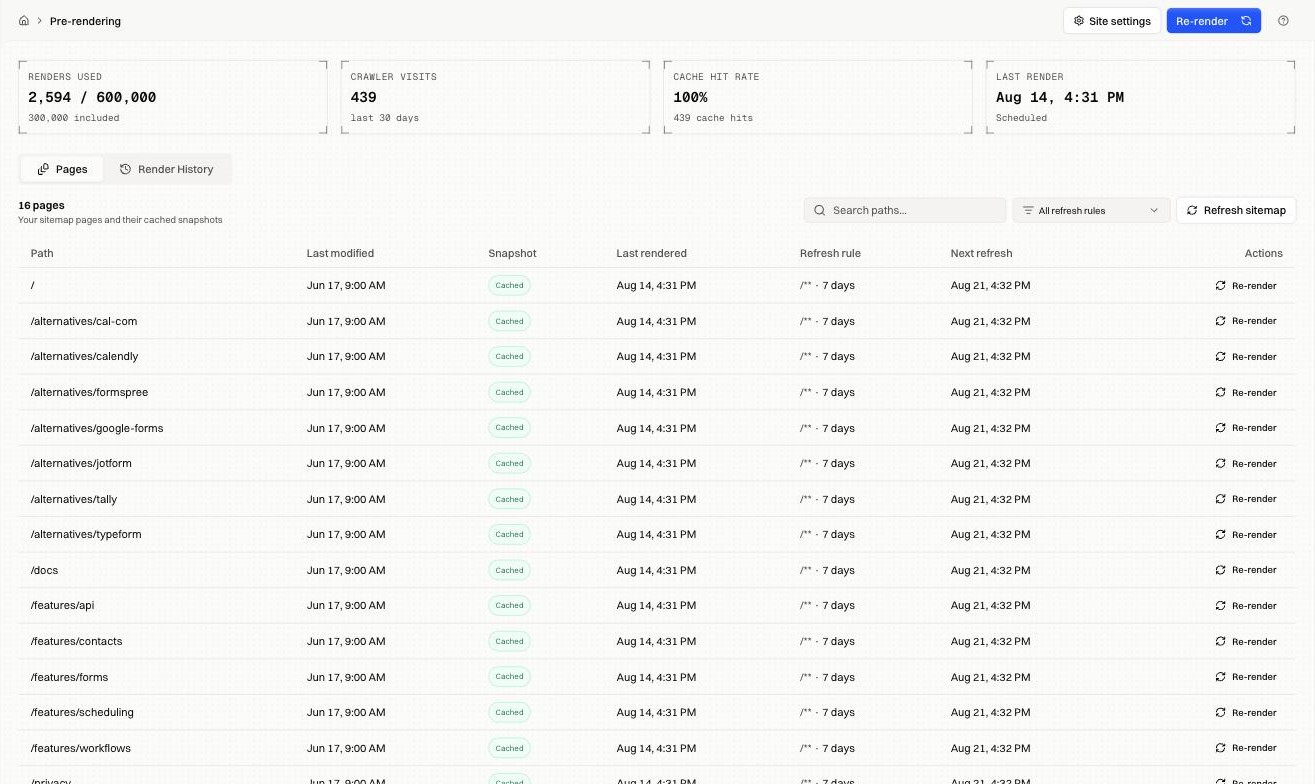
| Column | What it tells you |
|---|---|
| Snapshot | Cached means a crawler gets this page instantly |
| Last rendered | When the snapshot was taken |
| Refresh rule | The pattern and interval that keeps it current |
| Next refresh | When it renews |
A high cache hit rate means crawlers are being served from cache rather than waiting for a fresh render.
2. Open a page#
Click any path.
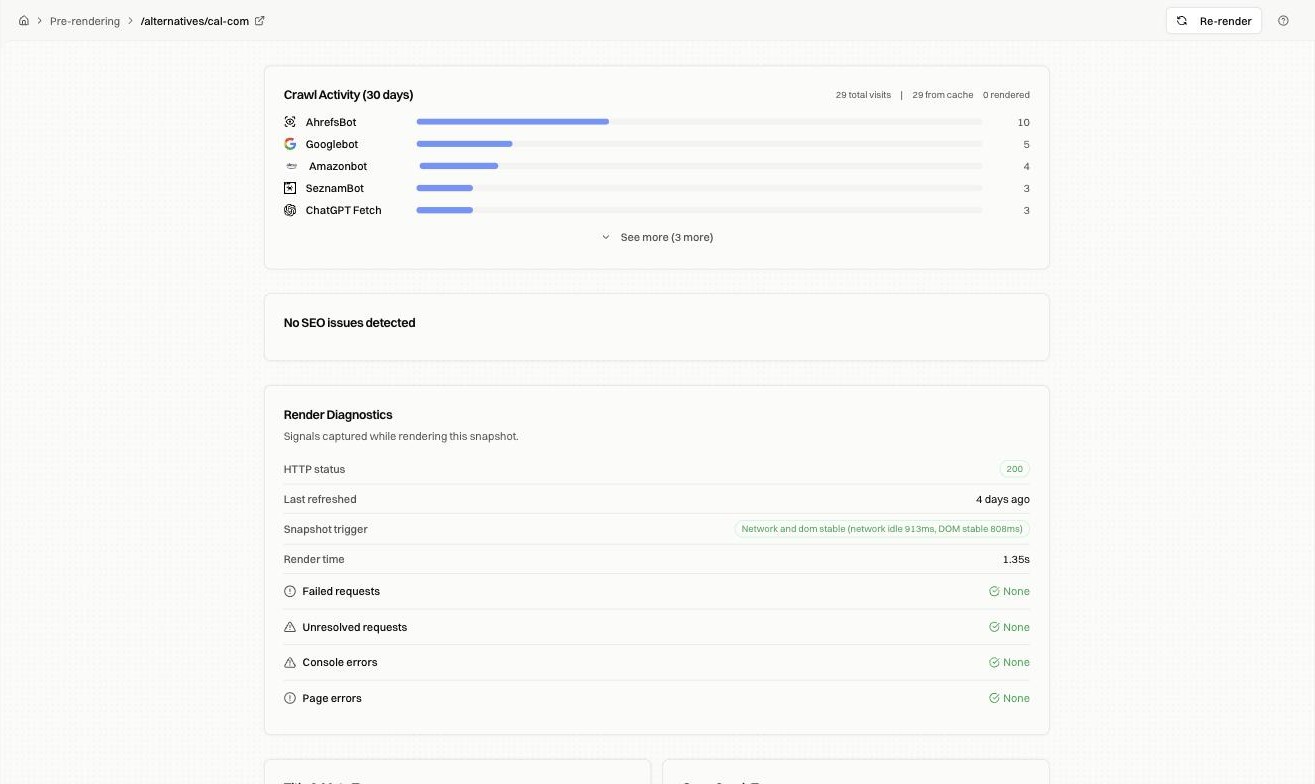
Crawl Activity lists which bots requested this page in the last 30 days and how many were served from cache. Render Diagnostics covers the render itself:
| Signal | What you want |
|---|---|
| HTTP status | 200 for a real page |
| Snapshot trigger | Network and dom stable. Other values mean the renderer gave up waiting |
| Render time | Under a couple of seconds |
| Failed requests | None. Failures here mean parts of the page never loaded |
| Console errors, Page errors | None. Errors often explain missing content |
3. Check the head#
Scroll to the head fields.
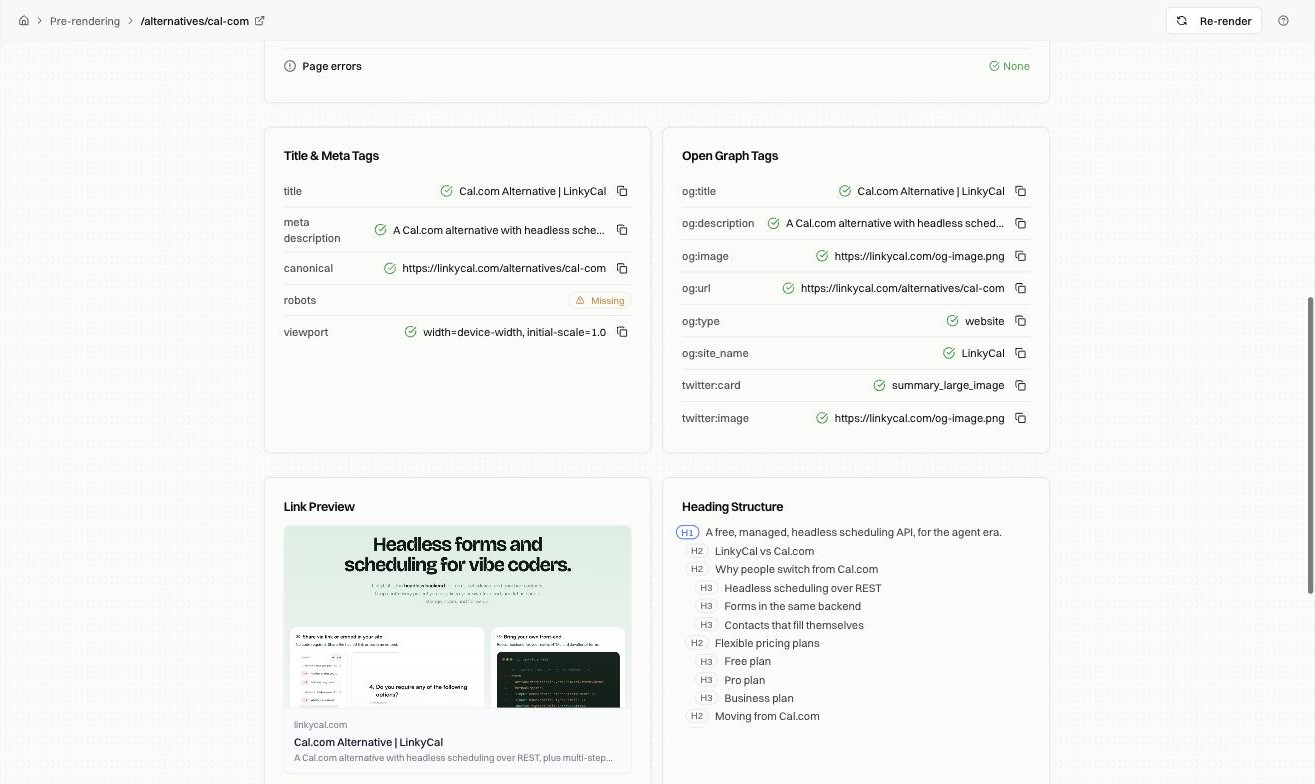
These fields come from the snapshot itself. Title, meta description, canonical, robots, and viewport appear with a tick when present and a warning when missing. Open Graph and Twitter tags sit beside them, with a rendered link preview showing what a shared link looks like.
Heading Structure shows the H1 to H3 outline the crawler reads. One H1 followed by a sensible descent means the page communicates its shape.
4. Re-render after a change#
Re-render on a page takes a fresh snapshot immediately. Use it after you fix something and want to confirm the fix landed, rather than waiting for the next scheduled refresh.
Fixes by symptom#
| Symptom | What to do |
|---|---|
| Snapshot missing content you can see in a browser | Check Snapshot trigger and Failed requests. Content arriving after the render finished needs the prerender ready signal |
| robots or canonical flagged missing | Your app isn't emitting them. Fix at the source, then re-render |
| HTTP status is 404 on a real page | Your origin returned an error at render time |
| Page not in the list at all | It isn't in your sitemap. Use Refresh sitemap |
| Render time is seconds long | Slow requests on the page. Failed and unresolved requests point at which |
FAQ#
Does re-rendering count against my quota? Yes, each render counts. Scheduled refreshes and on-demand ones draw from the same allowance.
Why is my cache hit rate below 100%? Crawlers reached pages before a snapshot existed, or after one expired. It climbs as coverage fills in.