
Pre-rendering for GHL AI Studio through Cloudflare
How GHL AI Studio pre-rendering works#
GHL AI Studio publishes your site on a vibepreview.com URL. A Cloudflare Worker attached to your custom domain serves pre-rendered HTML to crawlers and forwards everyone else to your published GHL site.
Crawler GET requests for HTML receive the rendered snapshot from Encited. Browser visits, assets, and any failed render calls are proxied straight to your vibepreview.com origin.
Prerequisites#
- An Encited account and API key (Settings → API Keys).
- Your custom domain added to a Cloudflare account (the free plan works).
- The published project URL, e.g. my-app.vibepreview.com.
Set up pre-rendering for GHL AI Studio#
Prefer no code? The DNS setup activates pre-rendering with two DNS records and no Cloudflare account. Use this guide when you want to keep Cloudflare in front of your domain.
Before you start, have your GHL AI Studio project URL ready (for example my-app.vibepreview.com).
1. Create a new Worker#
Open Cloudflare dashboard → choose a "Hello World" Worker → Deploy → Edit Code
2. Paste the snippet below into the Worker editor#
Edit the two constants at the top: GHL_UPSTREAM (your GHL AI Studio hosted URL) and PUBLIC_HOST (your custom domain).
encited
// encited.js (Cloudflare Worker - Custom Domain mode)
// Use this when the Worker is attached as a Custom Domain in Cloudflare and
// you need to forward non-prerendered traffic to your GHL AI Studio hosted URL.

// CHANGE THIS: your GHL AI Studio hosted URL (e.g. https://yourapp.vibepreview.com)
const GHL_UPSTREAM = 'https://yourapp.vibepreview.com';

// CHANGE THIS: your public custom domain (e.g. yourdomain.com)
const PUBLIC_HOST = 'yourdomain.com';

function isRedirect(status) {
  return status === 301 || status === 302 || status === 303 || status === 307 || status === 308;
}

async function forwardToUpstream(req) {
  const upstreamBase = new URL(GHL_UPSTREAM);
  const upstreamUrl = new URL(req.url);
  upstreamUrl.protocol = upstreamBase.protocol;
  upstreamUrl.hostname = upstreamBase.hostname;
  upstreamUrl.port = upstreamBase.port;

  const h = new Headers(req.headers);
  h.set('Host', upstreamBase.hostname);
  h.set('X-Forwarded-Host', PUBLIC_HOST);
  h.set('X-Forwarded-Proto', 'https');
  h.delete('cf-connecting-ip');
  h.delete('x-forwarded-for');
  h.delete('forwarded');

  const isGetLike = req.method === 'GET' || req.method === 'HEAD';
  const upstreamReq = new Request(upstreamUrl.toString(), {
    method: req.method,
    headers: h,
    body: isGetLike ? undefined : req.body,
    redirect: 'manual',
  });

  const resp = await fetch(upstreamReq);

  // Rewrite redirects so users stay on your custom domain
  if (isRedirect(resp.status)) {
    const loc = resp.headers.get('Location') || '';
    let newLoc = loc.replaceAll(upstreamBase.hostname, PUBLIC_HOST);
    newLoc = newLoc.replace(/^http:\/\//i, 'https://');

    const newHeaders = new Headers(resp.headers);
    if (loc) newHeaders.set('Location', newLoc);

    return new Response(resp.body, { status: resp.status, headers: newHeaders });
  }

  return resp;
}

export default {
  async fetch(req, env) {
    // Only handle public GET navigations
    if (req.method !== 'GET') return forwardToUpstream(req);

    // Treat missing/empty Accept and bare '*/*' as HTML so crawler tests
    // (curl without -H, default fetch) still route through prerender.
    // Asset requests from browsers send specific Accept (e.g. 'text/css,*/*;q=0.1')
    // so they won't match.
    const accept = (req.headers.get('accept') || '').trim();
    const isHtmlRequest = !accept || accept === '*/*' || accept.includes('text/html');
    if (!isHtmlRequest) return forwardToUpstream(req);

    const headers = new Headers();
    // Add LOVABLEHTML_API_KEY as a secret: Worker -> Settings -> Variables and Secrets.
    headers.set('x-lovablehtml-api-key', env.LOVABLEHTML_API_KEY);
    headers.set('accept', 'text/html');
    const forward = [
      'accept-language',
      'sec-fetch-mode',
      'sec-fetch-site',
      'sec-fetch-dest',
      'sec-fetch-user',
      'upgrade-insecure-requests',
      'referer',
      'user-agent',
    ];
    for (const name of forward) {
      const v = req.headers.get(name);
      if (v) headers.set(name, v);
    }

    try {
      const r = await fetch(
        'https://encited.com/api/prerender/render?url=' + encodeURIComponent(req.url),
        { headers, redirect: 'manual' },
      );

      // 301 = configured redirect rule matched - forward to client
      if (r.status === 301) {
        const loc = r.headers.get('location');
        if (loc) {
          return new Response(null, {
            status: 301,
            headers: { location: loc, 'cache-control': 'no-store' },
          });
        }
      }

      // 304 = not pre-rendered, fall through to upstream
      if (r.status === 304) {
        return forwardToUpstream(req);
      }
      if (r.status === 200 && (r.headers.get('content-type') || '').includes('text/html')) {
        const responseHeaders = new Headers(r.headers);
        for (const name of ['content-encoding', 'content-length', 'transfer-encoding', 'connection', 'keep-alive']) {
          responseHeaders.delete(name);
        }
        responseHeaders.set('content-type', 'text/html; charset=utf-8');
        return new Response(r.body, { status: 200, headers: responseHeaders });
      }
    } catch {
      // Prerender unreachable → fall through so visitors still get the site
    }

    return forwardToUpstream(req);
  },
};
3. Deploy the Worker#
4. Unset your custom domain as primary in GHL AI Studio#
This prevents redirect loops once the Worker takes over. Your domain keeps working exactly as before.
- Open your project on GHL AI Studio
- Go to Publish → Website address
- Find your custom domain. If it has a star icon next to it, that means it's set as the primary domain
- Click the three dots next to your custom domain
- Click "Unset as primary"
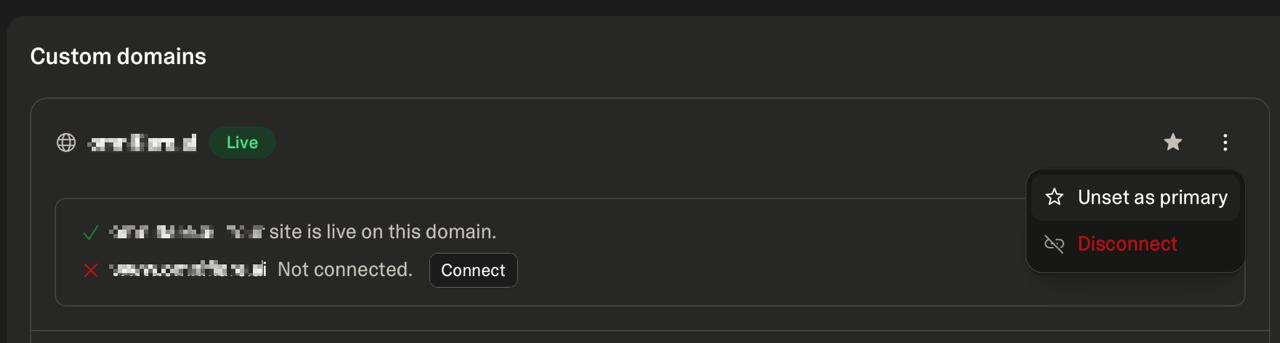
How to tell it worked There should be no star icon next to your custom domain, and when you click the three dots you should see "Set as primary" (not "Unset as primary").
5. Attach the Worker as a Custom Domain#
Go to your Worker → Settings → Domains & Routes → Add → Custom domain → enter yourdomain.com. Add a second Custom Domain for www.yourdomain.com if you use www.
Common mistakes
- Adding a Route instead of a Custom Domain. In this mode the Worker is the origin, so there is no proxied DNS record for a Route to intercept. Use Custom domain attachment so Cloudflare manages DNS and SSL for you.
- Testing before DNS and SSL are ready. Cloudflare auto-creates the DNS record and certificate after you attach the domain; the special Worker mapping in your DNS tab is expected. Give it a few minutes.
- Custom domain still set as primary in GHL AI Studio. A redirect loop after the Worker takes over means the domain is still set as primary. Unset it and your domain keeps working exactly as before.
Test the integration#
1. Send a crawler request
curl -sS -D - -o /dev/null \
  -A "Googlebot" \
  -H "Accept: text/html" \
  "https://your-domain.com/"
Look for a successful HTML response and the x-lovablehtml-render-cache header.
2. Confirm browser passthrough
curl -sS -D - -o /dev/null \
  -A "Mozilla/5.0" \
  -H "Accept: text/html" \
  -H "Accept-Language: en-US" \
  -H "Sec-Fetch-Mode: navigate" \
  -H "Sec-Fetch-Dest: document" \
  -H "Upgrade-Insecure-Requests: 1" \
  "https://your-domain.com/"
This request should come back from GHL AI Studio without an Encited render-cache header.
Common errors#
ERR_TOO_MANY_REDIRECTS on your custom domain
GHL is still publishing to your custom domain directly, so it redirects while the Worker serves it. In GHL open Publish → Website address and remove the custom domain as the published address.
The Worker never receives traffic
Attach your domain to the Worker as a Custom Domain, not a Route. In this mode the Worker is the origin, so a Route has no proxied DNS record to intercept.
Crawler requests return errors instead of rendered HTML
Confirm the Worker has a secret named LOVABLEHTML_API_KEY with a valid API key from your Encited dashboard, then redeploy the Worker.
Request and security behavior#
- Only crawler GET requests for public HTML pages are answered with pre-rendered snapshots.
- Along with the public page URL, only the API key and crawler-classification headers are sent to Encited.
- Cookie and Authorization headers are never forwarded to Encited.
- If Encited is unavailable or does not return rendered HTML, the request is forwarded to your GHL AI Studio project.
If your zone runs bot protection or rate limiting, those rules block us before the Worker helps. Set a render token and add the Cloudflare rule so renders and audit crawls get through.
Common questions#
Where do I find my GHL AI Studio project URL?#
Open the project, select Publish, and copy the published vibepreview.com address. That URL is the upstream the Worker forwards visitors to.
Will visitors notice the Worker?#
No. Browsers are proxied to your published GHL site and see the same pages on the same custom domain. Only crawlers get the pre-rendered HTML.
Is there a way to do this without Cloudflare?#
Yes. The no-code DNS setup points two A records at Encited and needs no Cloudflare account or Worker.