
Invite your team and set roles
Bringing someone in means deciding how much they can touch. A contractor who runs audits on one client site, a colleague who reads reports but shouldn't change site settings, an agency manager who handles everyone else. Roles decide that, and domain scoping narrows it to specific sites.
Time: 2 minutes per person. You need: Admin or Owner.
Where to find it#
Settings → Team.

Each row shows the member, their role, which sites they reach, and the count of active members against your plan's seats.
How it works#
Four roles#
| Role | What it adds |
|---|---|
| Viewer | Reads everything: analytics, crawl logs, audits, reports, page snapshots |
| Editor | Runs audits, re-renders pages, edits site settings, publishes hosted files, submits pages for indexing |
| Admin | Invites and removes members, changes roles, manages billing and SSO |
| Owner | Renames the team and transfers ownership |
Each role includes everything below it, so an Admin can do anything an Editor can. There's exactly one Owner.
Sending an invite#
Press Invite member, enter their email, pick a role, and send.
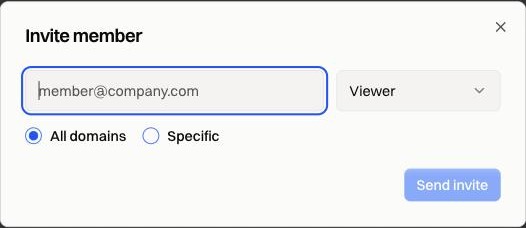
They get an email with a link. Until they accept, the invite sits in the list as pending.
Giving access to specific sites#
Switch from All domains to Specific and tick the sites that person should reach.
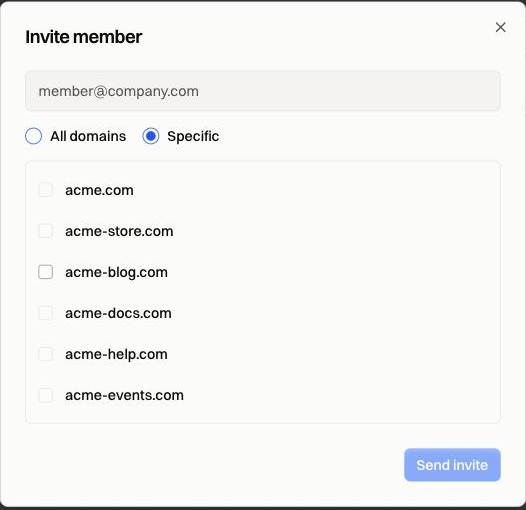
A scoped member sees only those sites, and gets Viewer or Editor on each one separately, so the same person can edit one site and only read another. Scoped members never get Admin, because Admin is account-wide by definition.
One consequence worth knowing: a scoped Admin can't send invites. Creating one requires an Admin who isn't restricted to a subset of sites.
Available on Agency and above Below that, every member reaches every site in the account.
Seats#
A seat is an active member or a pending invite. An invite that nobody accepts holds its seat until you revoke it or it expires, so a team that looks full may just be holding unanswered invites. Revoke them from the member list.
| Plan | Seats | Role picker | Specific sites |
|---|---|---|---|
| Basic and below | 1 | ||
| Essential | 3 | no | no |
| Pro | 5 | yes | no |
| Agency | 10 | yes | yes |
| Business | 30 | yes | yes |
On Essential the role picker doesn't appear and everyone you invite joins as an Editor, so they can change site settings and run audits. If that's more than you want to hand out, Pro is where the picker turns on.
Leaving and handing over#
Any member can leave a team from this page. The Owner can't, since a team always needs one: transfer ownership first, then leave.
Fixes by symptom#
| Symptom | What to check |
|---|---|
| "Editor access required" when running an audit | That person is a Viewer. Change their role in the member list |
| Invite never arrived | Check spam, then revoke and resend. The link expires, and an expired invite still holds a seat until revoked |
| Seats full but fewer people than expected | Pending invites count. Revoke the ones nobody accepted |
| Someone sees the wrong sites | They're scoped. Their row shows which sites; edit it to add or remove |
| Invite button does nothing for an Admin | Scoped Admins can't invite. It needs an Admin with access to all sites |
| Can't remove the last Owner | Transfer ownership to someone else first |
FAQ#
Does a member need their own subscription? No. They join your team and use its plan.
Can one person be in several teams? Yes. The team switcher at the top of the sidebar moves between them.
Is there a record of who changed what? Membership and role changes are written to the audit log on Business and Enterprise.
How do I enforce company sign-in? See SAML SSO setup.